How to sign in to the Oogle client portal
Go to my.oogle.net/client/login/, enter the email address your account was set up with and your password, then select Log In. Your invoices, services and support tickets are all there.
Applies to: Oogle client portal
The Oogle client portal is where you pay invoices, check your services and talk to our support team. It lives at my.oogle.net, separately from this website.
Sign in
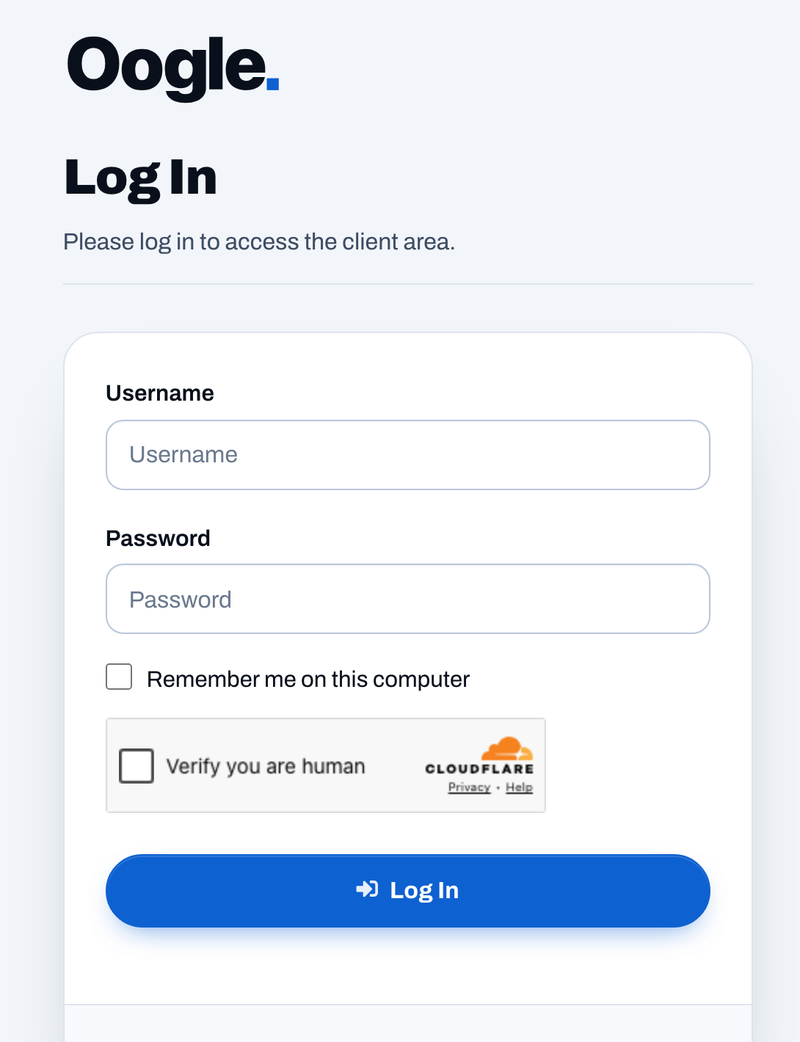
- Go to https://my.oogle.net/client/login/. You'll see the heading Log In.
- In Username, enter the email address your Oogle account was set up with.
- Enter your Password.
- If this is your own computer, you can tick Remember me on this computer. Leave it unticked on a shared or public computer.
- Select Log In.
- If you've turned on two-factor authentication, enter the six-digit One Time Password from your authenticator app and continue.
A short security check from Cloudflare runs on the sign-in page. It normally passes on its own in a second or two. If it shows a box to tick, tick it.
You'll know it worked when
You land on your Dashboard, with a welcome banner and the buttons Open a ticket, View invoices and View services. The menu on the left has Dashboard, Services, Support and Billing.
Bookmark https://my.oogle.net/client/ to come straight back. If you're signed out, it takes you to the sign-in page first.
If you can't sign in
- "Invalid username or password" or similar. Check you're using the email address on your account, not a different one. Passwords are case-sensitive, so check Caps Lock. Then use Reset My Password to set a new one: see Reset a forgotten password or username.
- You don't remember which email address you used. Select Forgot My Username and try the addresses you might have used. Only the right one gets an email.
- The security check keeps failing. Turn off a VPN or strict privacy extension for a moment, or try another browser. The check needs JavaScript and cookies.
- Your two-step code isn't accepted. Codes change every 30 seconds and depend on your phone's clock. Make sure the phone's time is set automatically, then enter the newest code. If you've lost the phone, contact us and we'll verify it's you before turning two-step sign-in off.
- You signed in but see nothing. A brand-new account may not have services or invoices yet. That's normal until your first invoice is issued.
Keep your password to yourself
Oogle will never ask for your portal password, by email, phone or in a ticket. If a message asks for it, don't reply: see How to recognize an official Oogle message.
Next steps
- Turn on two-factor authentication to protect your account.
- Get to know your client dashboard.
Frequently asked questions
What is my username?
Your username is the email address your account was set up with. The field is labeled Username, but your email address is what goes in it.
I've never had a password. How do I sign in for the first time?
Use Reset My Password with your email address. We'll send you a link to choose a password. If no email arrives, contact us.
Is the client portal the same as my WordPress login?
No. The client portal at my.oogle.net is for billing and support. Your website's WordPress administration has its own address and its own login.